


Business Accounting Process Guide
Managing business accounting often feels overwhelming when you’re juggling invoices, bank feeds, and monthly reconciliations manually. This business accounting process guide reveals how small to medium-sized businesses can stop losing valuable hours to repetitive bookkeeping and avoid costly errors. QuickBooks offers powerful automation that transforms chaotic accounting into a streamlined, accurate workflow for 2026. By following this business accounting process guide, you will learn how to prepare your environment, execute daily tasks efficiently, and maintain clean financial records all year.
Table of Contents
- Preparing Your QuickBooks For Streamlined Accounting
- Executing Accounting Tasks With QuickBooks Automation And Manual Controls
- Verifying Accounting Accuracy With Reconciliation And Troubleshooting Common Issues
- Streamline Your Accounting With QuickBooks Products From Awrrache
Key takeaways
| Point | Details |
|---|---|
| Proper setup prevents errors | Customizing your chart of accounts and connecting bank feeds before daily work eliminates monthly reconciliation headaches. |
| Automation needs oversight | Recurring invoices and auto-categorization speed up routine tasks but require regular review to catch misclassifications. |
| Monthly reconciliation is essential | Reconciling accounts every month catches discrepancies early and prevents error buildup that creates financial surprises. |
| Common pitfalls waste time | Duplicate transactions, undeposited funds buildup, and sales tax rounding issues require proactive monitoring. |
| Choose the right QuickBooks edition | Different versions offer varying features for inventory, projects, and user access based on your business scale. |
Preparing your QuickBooks for streamlined accounting
Before diving into daily bookkeeping, you need a solid QuickBooks foundation that supports efficient workflows and accurate reporting. Proper setup prevents costly mistakes and saves hours of cleanup work later. Think of this phase as building the infrastructure for your accounting system.
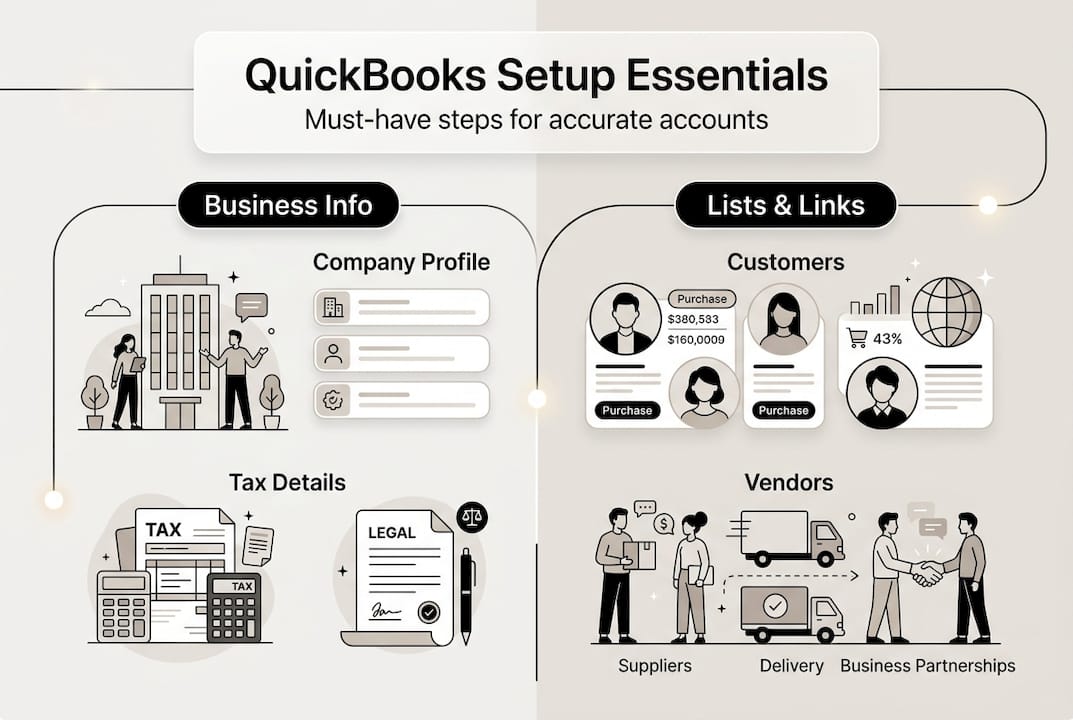
Start by completing your company profile with accurate business information, tax ID, and fiscal year details. Invite users who will access QuickBooks and assign appropriate permission levels to protect sensitive financial data while enabling collaboration. This initial step establishes security and ensures everyone works within proper boundaries.
Next, customize your chart of accounts to match your specific business structure and industry requirements. The QuickBooks setup checklist includes company profile, chart of accounts, customers/vendors, bank connections, products/services, users/apps as essential preparation steps. Delete unnecessary default accounts and create categories that reflect how you actually track income and expenses. A tailored chart of accounts makes transaction categorization intuitive and reporting meaningful.
Connect your bank accounts and credit cards to enable automatic transaction feeds. This connection eliminates manual data entry for most transactions and provides real-time visibility into cash flow. Verify that feeds import correctly and review the initial batch of transactions to train QuickBooks’ auto-categorization feature.
Set up your customer and vendor lists with complete contact information, payment terms, and default accounts. Accurate customer records enable precise invoicing and payment tracking. Vendor setup streamlines bill entry and ensures proper expense categorization from the start.
Define your products and services with detailed descriptions, pricing, and income accounts. For inventory businesses, enter starting quantities and costs to enable accurate tracking. This product catalog becomes the foundation for consistent invoicing and cost of goods sold reporting.
Pro Tip: Create naming conventions for accounts, customers, and products before entering data. Consistent naming prevents duplicates and makes searching effortless as your lists grow.
Consider integrating apps that enhance QuickBooks functionality for your specific needs. E-commerce businesses benefit from platform integrations, while service companies might need time tracking or project management connections. Explore QuickBooks Desktop for e commerce solutions if you sell online and need inventory synchronization.
| Setup Component | Purpose | Common Mistake to Avoid |
|---|---|---|
| Chart of Accounts | Organize financial data by category | Using too many similar accounts that confuse reporting |
| Bank Connections | Automate transaction imports | Connecting personal accounts mixed with business |
| Customer/Vendor Lists | Enable accurate billing and payments | Incomplete contact info that delays communications |
| Products/Services | Standardize invoicing and inventory | Inconsistent naming that creates duplicate entries |
Executing accounting tasks with QuickBooks automation and manual controls
Once your QuickBooks foundation is ready, focus on executing daily and weekly accounting tasks efficiently. The key is balancing automation benefits with manual oversight to maintain accuracy. Smart workflows combine QuickBooks’ time-saving features with human judgment for exceptions.

Set up recurring invoices for customers with regular billing cycles. This automation eliminates repetitive invoice creation and ensures consistent billing dates. Configure email delivery to send invoices automatically and enable online payment options to accelerate collections. Review recurring invoice batches monthly to catch any needed adjustments for pricing or service changes.
Standardize your data entry practices across all users. Start small with automation like recurring invoices first, standardize data, and design for exceptions; monitor undeposited funds and category health to maintain clean records. Create consistent naming conventions for transaction descriptions, customer names, and expense categories. This standardization prevents duplicate entries and makes searching historical transactions simple.
Review bank feed transactions daily or weekly rather than letting them pile up. QuickBooks suggests categories based on past patterns, but you must verify each suggestion before accepting. Misclassified transactions compound over time and create reconciliation nightmares. Develop a quick review routine:
- Scan suggested categories for obvious errors
- Match transactions to open invoices or bills when applicable
- Create rules for recurring vendors to speed future categorization
- Flag unusual transactions for deeper investigation
Handle complex transactions like loan payments, credit card fees, and split expenses with manual entry when needed. Automation works beautifully for straightforward income and expenses but struggles with multi-account transactions. Take time to split loan payments between principal and interest or allocate shared expenses across multiple projects or departments.
Monitor your undeposited funds account regularly to ensure payments move to the bank account promptly. This holding account should clear completely with each deposit. Buildup in undeposited funds indicates missed deposit entries that distort your cash position and complicate reconciliation.
Maintain flexibility in your workflows for business exceptions and seasonal changes. Not every transaction fits a standard pattern. Design your processes to handle one-off situations without breaking your routine. Document your procedures so team members can maintain consistency when you’re unavailable.
Back up your QuickBooks data weekly and store backups securely offsite or in the cloud. Regular backups protect against data corruption, hardware failure, or accidental deletions. Test your backup restoration process annually to verify you can actually recover data if needed.
Pro Tip: Create a monthly checklist of accounting tasks with target completion dates. This visual reminder prevents forgotten steps and helps you spot workflow bottlenecks that need process improvements.
For specialized industries, explore tailored QuickBooks solutions like QuickBooks Desktop for vending machine ops that address unique tracking requirements. Industry-specific features can dramatically reduce manual workarounds and improve reporting accuracy.
- Use bank rules to auto-categorize recurring vendors and save review time
- Set reminders for invoice follow-ups on overdue accounts
- Batch similar transactions together for efficient processing
- Review auto-categorization accuracy monthly and adjust rules as needed
- Document special transaction handling for team training and consistency
Verifying accounting accuracy with reconciliation and troubleshooting common issues
Executing transactions efficiently means nothing if your data contains errors. Regular verification through reconciliation and proactive troubleshooting maintains reliable financial records you can trust for business decisions. This verification phase catches mistakes before they multiply.
Perform bank and credit card reconciliations monthly without exception. Reconciliation compares your QuickBooks records against actual bank statements to identify discrepancies. Not reconciling monthly leads to errors and surprises; common mistakes include duplicates, auto-categorization errors, undeposited funds buildup, and sales tax rounding bugs requiring adjustment. Start reconciliation within days of receiving statements while transactions remain fresh in your memory.
Watch for duplicate transactions that occur when bank feeds import entries you already entered manually. QuickBooks attempts to match and prevent duplicates, but the system isn’t perfect. Scan your register for identical amounts on the same date and investigate. Delete true duplicates immediately to avoid overstating expenses or income.
Review auto-categorization suggestions critically rather than accepting them blindly. QuickBooks learns from your past choices, but vendors sometimes charge for different expense types. A vendor might sell both office supplies and equipment, requiring different account treatment. Spot-check categorized transactions weekly to catch systematic misclassifications early.
Monitor your undeposited funds account balance and investigate any persistent amounts. This account should zero out completely after recording deposits. Lingering balances indicate payments received but not deposited or deposit entry errors. Clearing undeposited funds prevents cash flow confusion and reconciliation problems.
Be aware of sales tax rounding issues that can create small discrepancies in tax reports. QuickBooks rounds tax calculations at the line item level, which sometimes differs from total invoice rounding. These penny differences accumulate over many transactions. Review sales tax liability reports and make manual adjusting entries if rounding errors exceed acceptable thresholds.
Understand QuickBooks limitations that affect your specific business model. Desktop versions have project tracking limits per customer and list size restrictions that impact large operations. Plan your data structure around these constraints or consider upgrading to versions with higher limits when you approach boundaries.
Adjust misclassified transactions promptly when you discover errors. Don’t wait until year end to fix categorization mistakes. Timely corrections keep your financial reports accurate for ongoing business decisions. Use journal entries for complex adjustments and document the reason for each correction.
Pro Tip: Create a reconciliation troubleshooting checklist with common issues you’ve encountered. This reference speeds up future reconciliations and helps train new team members on your specific quirks.
For wholesale operations with complex inventory and vendor management, explore QuickBooks Desktop for wholesalers features designed for your business model. Specialized tracking reduces manual workarounds that introduce errors. Review industries served by QuickBooks to find solutions matching your specific accounting challenges.
| Common Issue | Warning Sign | Quick Fix |
|---|---|---|
| Duplicate Transactions | Identical amounts on same date | Delete the duplicate entry after verifying |
| Auto-Categorization Error | Unusual expense spikes in reports | Review and recategorize affected transactions |
| Undeposited Funds Buildup | Balance doesn’t clear to zero | Match payments to actual bank deposits |
| Sales Tax Rounding | Small discrepancies in tax reports | Make adjusting journal entry for accumulated difference |
| Missed Reconciliation | Growing unexplained differences | Reconcile immediately and investigate discrepancies |
- Reconcile all accounts monthly within five days of statement receipt
- Scan for duplicates before reconciling to avoid confusion
- Review categorization accuracy weekly with spot checks
- Clear undeposited funds with each actual bank deposit
- Document recurring reconciliation issues and their solutions
- Set calendar reminders for reconciliation deadlines
Streamline your accounting with QuickBooks products from Awrrache
Implementing the accounting processes outlined in this guide requires the right QuickBooks tools matched to your business needs. Awrrache offers official QuickBooks Desktop licenses that provide powerful accounting features without ongoing subscription costs. Whether you need basic bookkeeping or advanced inventory and project tracking, you’ll find a version suited to your requirements.
Explore QuickBooks Desktop Pro & Enterprise 2024 options that deliver the automation and control features discussed throughout this guide. Pro editions work well for small businesses with straightforward accounting needs, while Enterprise versions support larger operations with advanced user permissions and inventory management. Review the QuickBooks Desktop 2024 guide for detailed feature comparisons that help you choose the right edition.
Awrrache provides instant digital delivery of authentic licenses with free updates and 24/7 support to keep your accounting running smoothly. One-time purchase licenses eliminate recurring subscription fees while giving you access to proven desktop software trusted by accountants and business owners. Browse all available QuickBooks products at Awrrache to find the perfect match for your business accounting process in 2026.
FAQ
What is the first step in setting up QuickBooks for a small business?
Begin by completing your company profile with accurate business information, tax identification, and fiscal year settings. Next, customize the chart of accounts to match your business structure and industry requirements rather than using generic defaults. Connect your bank and credit card accounts to enable automatic transaction feeds that eliminate manual data entry. These foundational steps create the infrastructure for efficient daily accounting.
How often should I reconcile my accounts in QuickBooks?
Reconcile all bank and credit card accounts monthly within five days of receiving statements. Monthly reconciliation catches discrepancies while transactions remain fresh in your memory and prevents small errors from accumulating into larger problems. Regular reconciliation also ensures your financial reports reflect accurate data for business decisions throughout the year.
What are common QuickBooks mistakes to watch out for?
Watch for duplicate transactions from bank feeds that overstate income or expenses when you’ve already entered them manually. Auto-categorization errors occur when QuickBooks misclassifies transactions based on incomplete learning patterns. Undeposited funds buildup happens when you record payments but forget to enter the corresponding bank deposit. Sales tax rounding issues create small discrepancies that accumulate over many transactions and require periodic adjusting entries.
Can QuickBooks handle complex transactions like loans and fees automatically?
Complex transactions typically require manual entry and account splitting to maintain accuracy. While QuickBooks automates straightforward income and expense recording beautifully, loan payments need manual splits between principal and interest accounts. Credit card processing fees, shared expenses across departments, and similar multi-account transactions benefit from human oversight to ensure proper categorization. Design your workflows to handle these exceptions without disrupting your automated routine tasks.
Recommended
- QuickBooks Desktop 2024: The Ultimate Guide to One-Time Purchase Licenses
- Unlock Success with QuickBooks Desktop Pro & Enterprise 2024
- Blogs – AWRRACHE
- QuickBooks Desktop for Business Consultants | One-Time Purchase License | Awrrache Official